The biggest tip I can give new Pixel owners to help them make their phones instantly more powerful is by enabling the “Always show keyboard” setting from their home screen. This single toggle makes your phone’s search the most handy and useful tool on it.
Looking back, I’m still not sure when Google first introduced this, but we’ve talked about it since at least 2022. I actually believe it was here before that. Again, it’s a single setting that (at least I think) turns a swipe on your home screen into the ultimate Pixel tool.
Let’s dive in here.
Enable Universal Pixel search, just like the iPhone’s Spotlight Search
For those of you who have used an iPhone at any point in life, I’m going to assume you know that swiping down on the home screen brings up a universal search called Spotlight Search. This simple action allows you to search your entire iPhone and get to apps, settings, and more by typing out a few characters on a keyboard. It’s awesome.
Google built a similar feature on Pixel phones that doesn’t have much of a fancy name, but you’ll want to enable it to get that same fast universal phone search experience with keyboard that lets you find almost anything.
As you can see in the screenshots below, this search will let you look through web history, suggestions from the Google App, your calendar, clock, contacts, Drive, files, Gmail, Play Store, Wallet, Messages, and the My Pixel app.
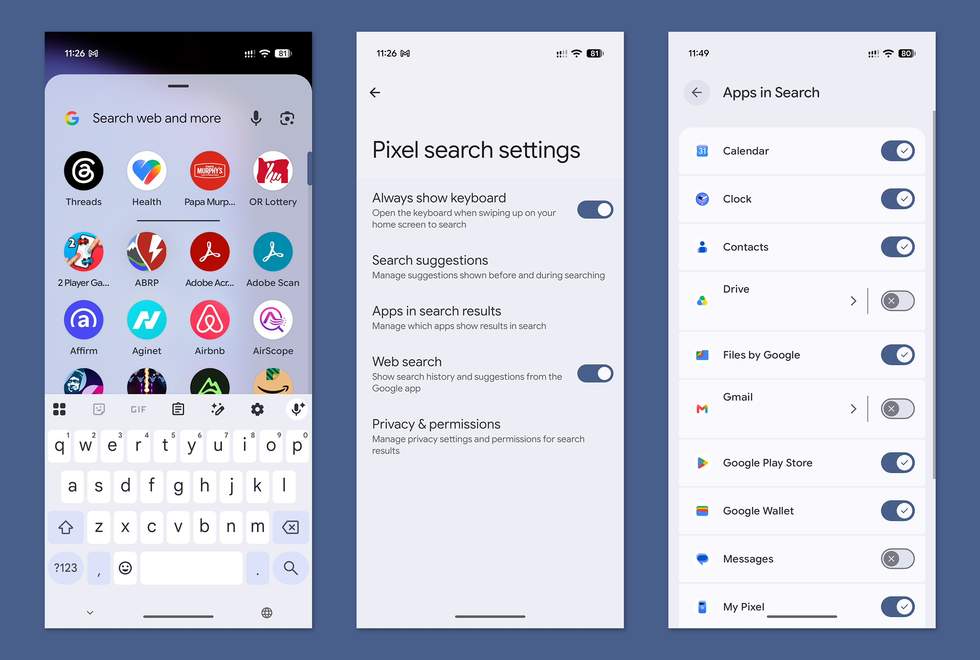
Now, you can use this search by swiping into your app drawer. However, if you only have that action set, you then need to tap into the top area after that swipe in order to open the keyboard and then search for something.
What Google has done in recent years is enable the “Always show keyboard” option that takes that swipe into the app drawer and automatically opens the keyboard for an instant search session.
This is, without a doubt, the most used action I perform on my phone. I do this probably dozens, if not close to a hundred, times per day.
To enable your Pixel phone’s powerful universal search with a single swipe, do the following:
- Long-press on your home screen and choose “Home settings”
- Tap on “Apps list settings”
- Tap on “Pixel search settings”
- Enable “Always show keyboard”
Once that is enabled, all you have to do is swipe up on your home screen and your Pixel phone will then open your app drawer and present the keyboard to you automatically so that you can begin typing your query.
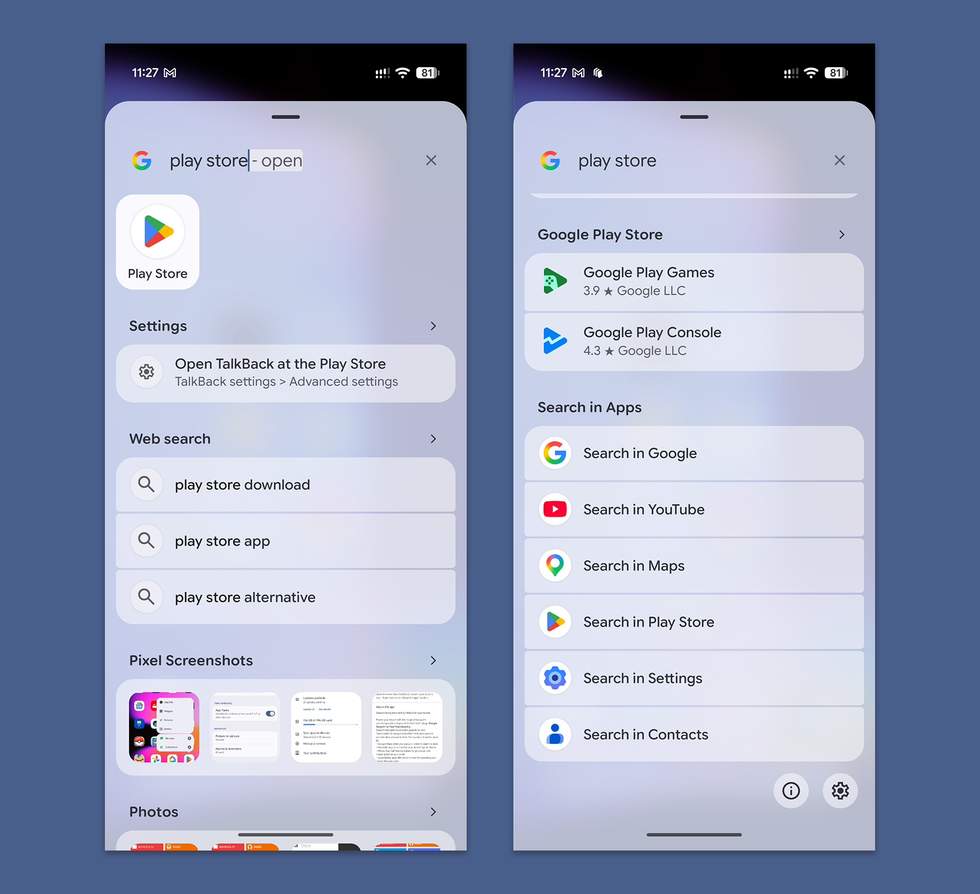
Below is an example of me simply searching for “play store” and it showing a shortcut to the app that I can tap and open, but it also brings up Play Store settings, an optional web search for those words, and it even found photos and screenshots related to my search query. If none of that is what I wanted, you can scroll to the bottom and have it search within other services, like Google Search, Maps, YouTube, etc.
Now, to get the most out of this, you’ll want to head back into those “Pixel search settings” and dive into each of the options in there. The big one is “Apps in Search,” which lets you go through and toggle on the different services you would like this universal search to search through.
My suggestion here is to try and make this your ultimate Pixel habit. If you need to look up anything, open an app, find a setting, or look through Photos, just swipe up on your home screen and start typing out whatever is on your mind. It’ll change how you use your Google Pixel phone.
Read the original post: This Keyboard Trick Makes Your Pixel Phone Instantly More Powerful